> For the complete documentation index, see [llms.txt](https://docs.wpsite.pro/wp/llms.txt). Markdown versions of documentation pages are available by appending `.md` to page URLs; this page is available as [Markdown](https://docs.wpsite.pro/wp/powercourse-jiao-xue-wen-jian/quan-jie-mian-zhu-ti-yan-se-she-ding/geng-gai-ke-cheng-xi-tong-zhu-ti-yan-se.md).
# 更改課程系統主題顏色
你可以針對不同的網站設計風格,自定義不同的課程系統主題顏色,包括課程銷售頁與課程教室
頁面的底色跟按鈕的顏色有多種配色組合,一起來看看怎麼設定吧
 1. 後台左側找到 Powerhouse > 設定\
\

1. 後台左側找到 Powerhouse > 設定\
\

{% hint style="info" %}
或也可以在Power的所有系列外掛中的後台中,點上方的 『主控台』 也能進到設定介面(如下圖)
{% endhint %}
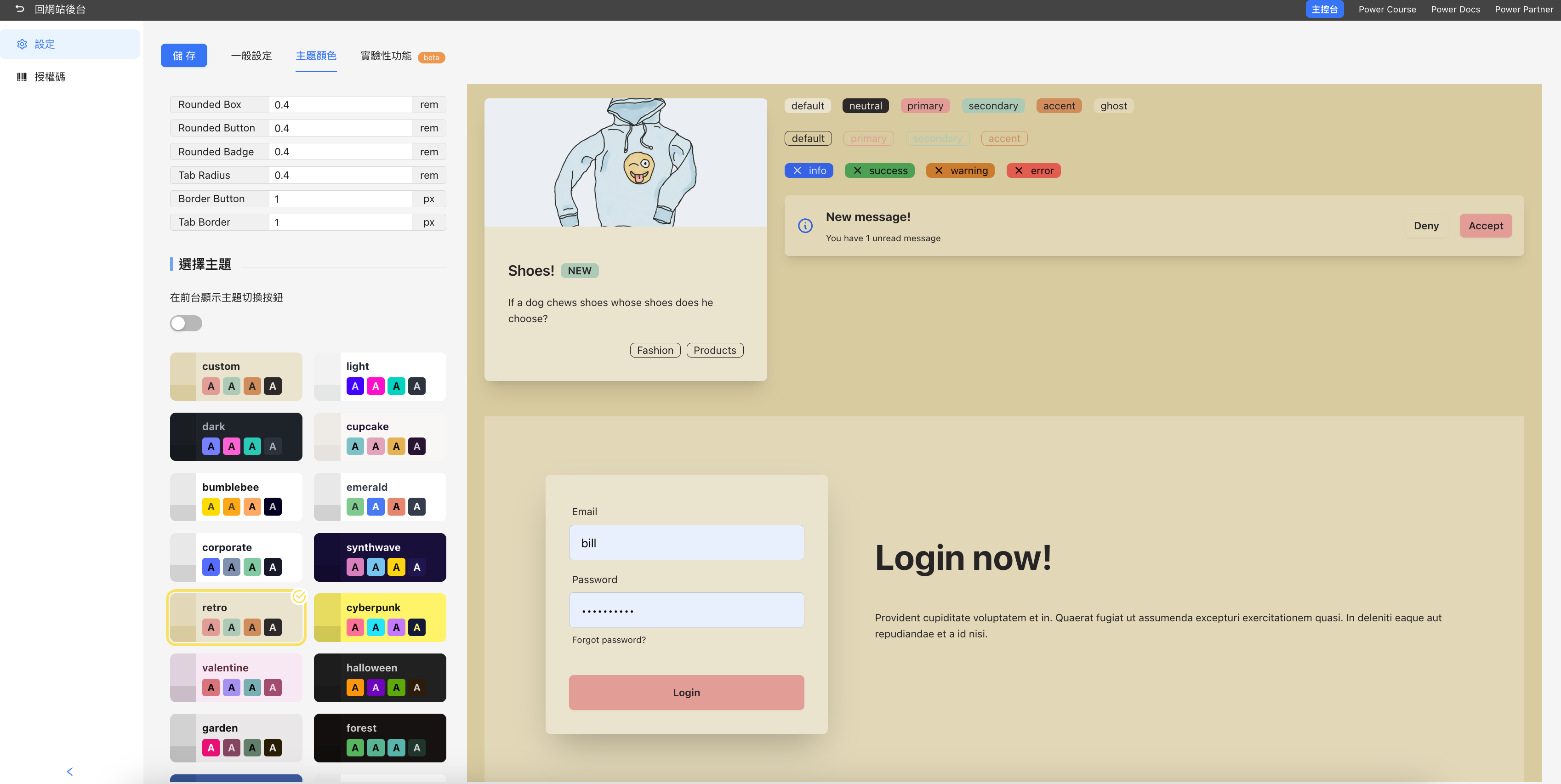
 ▼ **這裡就是主控台主題顏色的設定介面**

### 選擇主題(配色模板)
先看到下方 『選擇主題』 這區,這裡有已經搭配好顏色的各式色彩主題
點選後就能在右側的預覽畫面中,即時呈現該組顏色在前台會看到的樣式喔
選擇好之後,可直接點上方 『儲存』 按鈕 就可以囉!
 如果你還有想要調整一些細部設定,例如按鈕邊緣的細節
可繼續往下閱讀『自訂主題區域』的說明
如果你還有想要調整一些細部設定,例如按鈕邊緣的細節
可繼續往下閱讀『自訂主題區域』的說明
### 自訂主題(主題細部調整)
這裡可以細調 介面元件與顏色 的所有設定
右側的預覽畫面是會即時反應修改數值後呈現的樣式的
\
\
以下介紹幾個大家比較常會用到的:
1. Rounded Box - 設定底部框元件的四邊圓角弧度
 ⠀⠀⠀
2. Rounded Button - 設定按鈕的四邊圓角弧度
⠀⠀⠀
2. Rounded Button - 設定按鈕的四邊圓角弧度
 ⠀\
▼ 以下是示範影片\
✳️小提醒:覺得影片太小看不清楚的話,可點右下角的放大按鍵就能放大到全螢幕了
{% embed url="" %}
⠀
3. 數值設定好之後,最後點擊上方 『儲存』 按鈕就可
其他沒那麼常用到的數值區域我們會持續優化
之後有新的常用數值會再補充教學內容
⠀\
▼ 以下是示範影片\
✳️小提醒:覺得影片太小看不清楚的話,可點右下角的放大按鍵就能放大到全螢幕了
{% embed url="" %}
⠀
3. 數值設定好之後,最後點擊上方 『儲存』 按鈕就可
其他沒那麼常用到的數值區域我們會持續優化
之後有新的常用數值會再補充教學內容